This post is Day #9 in a series called the 31 Days of Windows Phone.
Over the past couple of days, we’ve talked about Launchers and Choosers, and in some cases how debugging those tools can be difficult without hardware. Today, we’re going to talk about debugging, and some of the tools we have at our disposal to optimize our applications.
Application.Current.Host.Settings
If you open your App.xaml file, you’ll see that there’s an if statement that looks like this:
// Show graphics profiling information while debugging.
if (System.Diagnostics.Debugger.IsAttached)
{
	// Display the current frame rate counters.
	Application.Current.Host.Settings.EnableFrameRateCounter = true;
	// Show the areas of the app that are being redrawn in each frame.
	Application.Current.Host.Settings.EnableRedrawRegions = true;
	// Enable non-production analysis visualization mode,
	// which shows areas of a page that are being GPU accelerated with a colored overlay.
	Application.Current.Host.Settings.EnableCacheVisualization = true;
}
This section enables some tools while you are debugging that give you a great deal of information about what is happening with your application. Here’s a quick rundown on what each of them do:
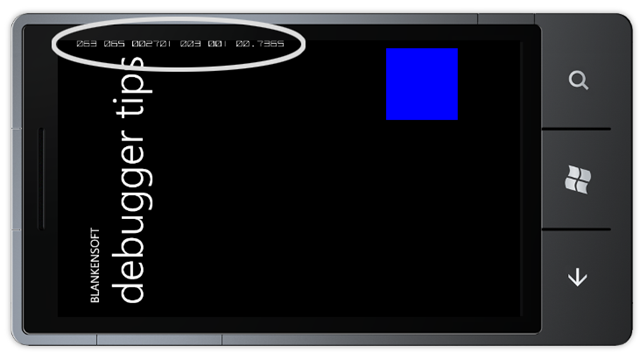
EnableFrameRateCounter
This is the only one that is enabled by default, and it allows you to monitor your application’s frame rate as it’s running. You’ll notice that all of these tools are wrapped in a (Debugger.IsAttached) if statement, and that’s because you really don’t want to be using this in your final production app. These are tools meant for debugging. This check for the debugger is also a great way to unlock menus, test out trial versions of your app, etc. It unlocks the stuff when you’re debugging, but leaves it alone in any other state.
Keeping in mind that the standard for the film industry is 24 frames per second, you’re likely not going to need to rise much above that, unless you have complicated animations and movement in your application. There is an excellent article on the “Persistence of Vision” on Wikipedia.
EnableRedrawRegions
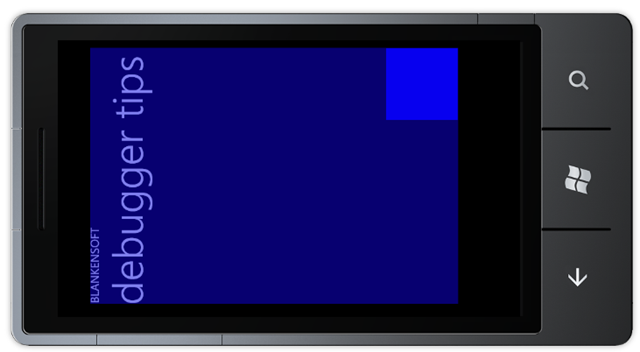
Turn on this debug setting to see what and where rectangles are being redrawn within your application. When enabled you can see what is painted because the repaint region is colored in blue.
This can become exceedingly important when you’re getting low frame rates, and you can’t understand why. It’s likely because the application is redrawing a portion of your screen, even if it’s not obvious.
EnableCacheVisualization
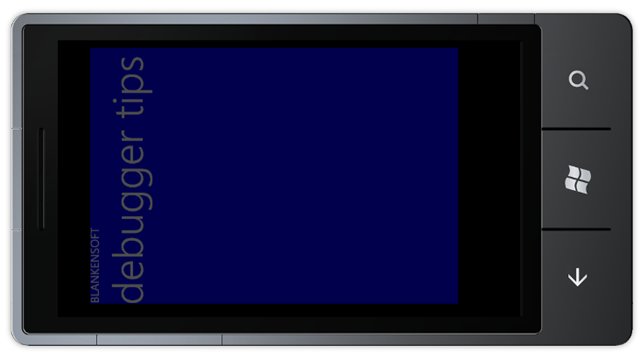
Another colored overlay, EnableCacheVisualization shows you the areas of your page that are being GPU accelerated. You would expect your video and animations to leverage this heavily, but I think you’ll be surprised how often your graphical processing can be handled by the device’s GPU.
Download the Code
There’s some quick tips about some tools you have available to you while debugging. Tomorrow, we’re going to talk about InputScope, and all of the different forms the on-screen keyboard can have.

 Subscribe